


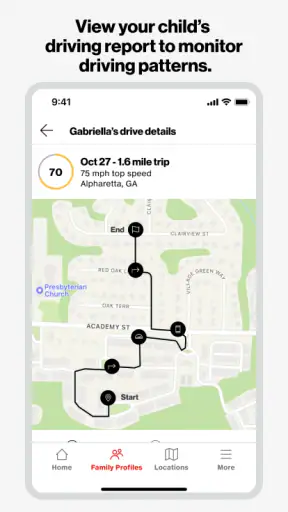
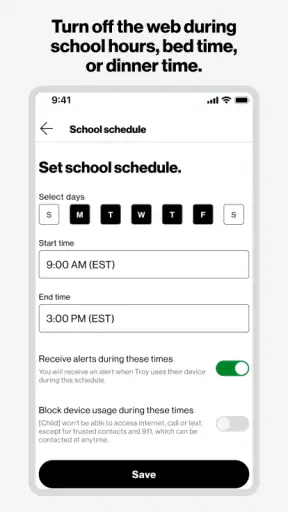
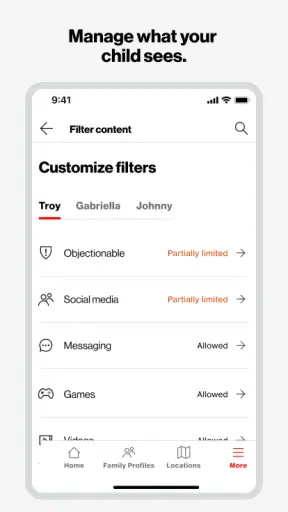
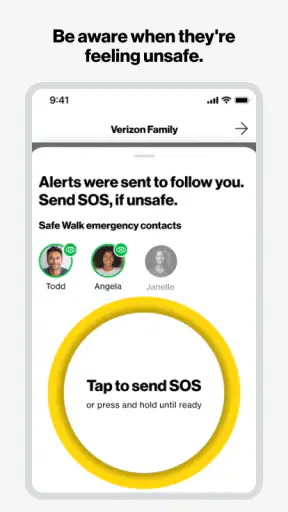
Keeping track of a family’s phones, whereabouts, and daily routines sounds simple until the first setup problem appears. In my experience, Verizon Family is most useful when I treat it as a shared household tool rather than a magic button that solves every parenting concern. It brings family location, screen-time oversight, and driving-related visibility into one lifestyle app, which can be more convenient than switching between separate services.
The app is developed by Verizon Consumer Group and is free to use. It has been available since July 3, 2013, and its Everyone age rating makes it approachable for a broad household audience. Its current store presence is also substantial, with more than a million installs, a 4.4 average from roughly thirty-six thousand ratings, and about eight thousand written reviews. Those figures suggest that many people find the basic idea worthwhile, but they do not remove the need for careful setup.
Where Verizon Family Usually Becomes Difficult
The first thing I would tell a friend is that family-management apps depend on cooperation between several phones. A location view is only as useful as the device sending its location, and screen-time information is only meaningful when the relevant family members and devices have been connected correctly. When something looks wrong, it is tempting to blame the app immediately, but the problem may be an incomplete invitation, an inactive account connection, or a phone that has stopped reporting.
That is why I recommend deciding what you actually want to accomplish before opening the app. Are you mainly trying to know whether a child arrived somewhere safely? Do you want a clearer view of phone habits? Is driving visibility the priority for a new driver? These goals overlap, but they are not identical. A household that only needs occasional location sharing may find a simpler phone-based location tool less demanding. A household that wants several kinds of family oversight in one place is more likely to benefit from Verizon Family.
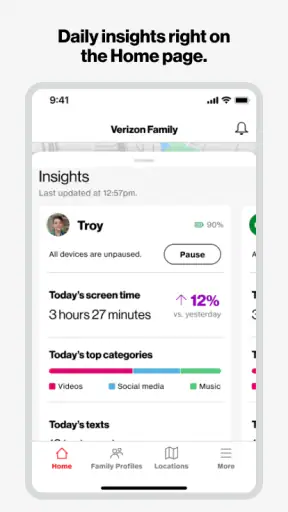
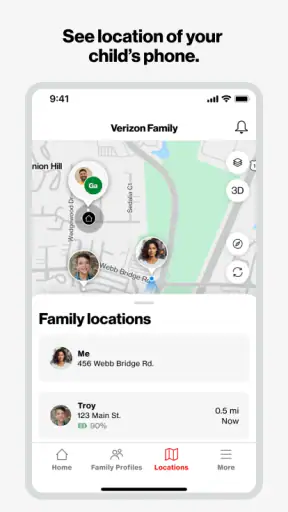
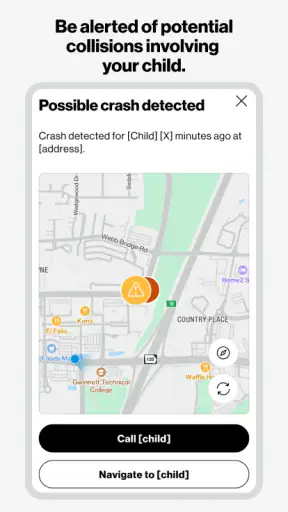
The app’s strongest appeal is its combination of family location, screen-time awareness, and driving-related oversight. Instead of treating each concern as a separate project, I can think about them together: where a family member is, how a device is being used, and whether driving activity deserves attention. That unified approach is convenient, though it also means there are more relationships and settings to check when something does not appear as expected.
Check the family structure before changing settings
A common mistake is to start adjusting controls before confirming that the correct people and devices are associated with the household. I would first look through the family view and identify which phone belongs to whom. This matters especially in homes where an old handset has been replaced, a child uses more than one device, or a parent has changed phones. A perfectly configured rule attached to the wrong device is still the wrong result.
I also prefer to begin with one simple goal. For example, I might first confirm that a family member’s location appears correctly, then examine screen-time information, and only afterward explore driving-related tools. Testing everything at once makes it difficult to tell which part is working and which part needs attention. A staged setup takes longer at the beginning but saves frustration later.
Why location can look stale or inconsistent
Location tools are naturally sensitive to the condition of the phone. If the device is turned off, disconnected, restricted by its own settings, or unable to communicate properly, the map may not reflect the person’s current situation. I would not interpret an old-looking location as proof that someone is still there. Instead, I would compare the time of the last update with what I know about the phone and the person’s routine.
This is one of the most important practical limits of any family locator: it provides visibility, not certainty. I see it as a way to reduce unnecessary worry and support agreed household routines, not as a replacement for calling someone during a genuine emergency. If a family member is expected somewhere and the information seems unusual, direct contact remains the sensible next step.
Screen-time information needs context
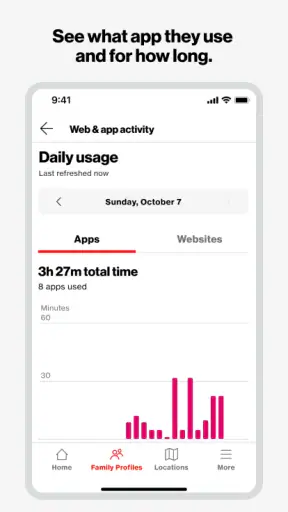
Screen-time oversight can be helpful, but a number or summary does not explain why the phone was used. A long session could involve schoolwork, navigation, communication, or entertainment. I find the feature more useful as a conversation starter than as an automatic judgment. Before reacting to a pattern, I would ask what the device was being used for and whether the household’s expectations were clear.
This is also where Verizon Family differs from a basic location-sharing service. A simple map app may be easier for a family that only wants arrival reassurance. Verizon Family makes more sense when parents want to connect location awareness with broader conversations about device habits and driving. The trade-off is that the setup and interpretation require more care.
Setup Checks That Prevent Most Friction
I would approach installation as a household process, not something completed on one phone in isolation. Start by identifying the account that will manage the family arrangement, then make sure each relevant person understands what the app is being used for. Clear expectations are not just a courtesy; they make the information more trustworthy because family members are less likely to disable or ignore something they do not understand.
After adding a person, I would verify the device shown for that person before relying on any location or usage information. If the wrong handset is selected, later troubleshooting becomes confusing. I would also give the app a little time to establish a normal pattern rather than judging it from the first screen immediately after setup.
My best setup tip is to test one complete everyday scenario. For example, have a family member leave home for a short trip, check whether the expected device is represented, and then confirm that the information changes as the trip progresses. This is more revealing than simply opening the app while every phone is sitting on the same table.
Use a deliberate permission review
Because Verizon Family deals with personal and device-related information, I would review the phone’s settings carefully during setup and after major system updates. I would check whether the app is allowed to perform the functions the household expects, while also avoiding permissions that do not fit the intended use. The goal is not to grant everything automatically; it is to make sure the phone’s own controls are not quietly preventing the selected family tools from working.
If location appears unavailable, I would check the device’s general location setting first. If screen-time information seems incomplete, I would inspect whether the relevant device is still connected to the family arrangement and whether the phone has recently been replaced or reset. These are simple checks, but they are more productive than repeatedly refreshing the same screen.
Start with reasonable household rules
I would avoid creating a complicated set of expectations on the first day. Begin with a small number of clear routines, such as checking in after arriving at an activity or discussing phone use during study time. Once everyone understands how Verizon Family fits into those routines, it becomes easier to decide whether additional oversight is genuinely useful.
This approach also helps avoid a subtle problem: confusing more information with better parenting. If every available detail becomes a reason for intervention, the app can create tension instead of reducing it. I prefer to use the information selectively, focusing on safety, agreed boundaries, and patterns that are worth discussing.
Consider the difference between a family phone and a personal phone
Some households share tablets, spare phones, or devices that move between family members. That arrangement can make the data difficult to interpret because the device’s activity may not belong to one person. Before drawing conclusions, I would confirm who actually had the phone during the period being reviewed. This is a small but important distinction, especially when screen-time information is being used to guide a conversation.
The same caution applies to driving-related visibility. A phone may be carried by a passenger, left in a vehicle, or used in circumstances that do not fit the assumption being made. I would treat the feature as a useful signal for discussion and awareness, not as a perfect record of every person’s behavior.
Recovering the Workflow When Something Looks Wrong
When the app stops showing useful information, I would troubleshoot in a fixed order. First, I would identify whether the problem affects one family member or everyone. If only one person is missing, I would focus on that person’s device and account connection. If the entire family view is affected, I would look at the managing account, the phone’s connectivity, and whether an update or sign-in change has interrupted the arrangement.
Next, I would close the app and reopen it, then check whether the phone itself has a working connection. I would avoid repeatedly changing several settings at once because that removes the clues needed to understand the failure. If the issue began after a handset change, reset, or system update, I would treat that event as the leading suspect and review the affected device from the beginning.
Separate a display problem from a reporting problem
There are two different situations that can look similar. The app may be displaying information slowly, or the family member’s device may not be sending a fresh update. I would compare the visible timestamp or freshness of the information with the phone’s actual condition. If the device has no connection or is unavailable, refreshing the managing phone will not create new information.
This distinction is useful in everyday life. Imagine a teenager leaves school and the map still shows the earlier location. I would first check whether the phone can communicate and whether the person is able to respond. I would not keep staring at the map as though it were a live guarantee. The app can support a check-in routine, but it cannot replace one.
Recover without rebuilding everything unnecessarily
If one feature is not behaving correctly, I would avoid deleting the entire family arrangement as a first reaction. Rebuilding every connection can create additional confusion, particularly in a household with several devices. I would isolate the affected person or function, confirm the account and device relationship, and then make one change at a time.
For screen-time information, I would compare the app’s view with the device’s own recent usage experience. For location, I would compare the reported place with a direct message or call. For driving-related information, I would consider whether the phone was actually with the driver. These comparisons do not prove a technical fault, but they help show whether the issue is limited to the app’s view or is part of the wider situation.
Know when to pause instead of forcing a fix
Privacy and family trust are part of the workflow. If a family member is uncomfortable with the arrangement, I would pause and revisit the purpose, boundaries, and expectations rather than trying to increase monitoring quietly. A tool that produces technically accurate information but damages communication may not be helping the household.
I would also be cautious about treating an unusual reading as misconduct. A missed update, a shared device, or a passenger using a phone can all create misleading impressions. The responsible response is to verify the situation and discuss it calmly. This is especially important when the app is being used with older children or teenagers who need growing independence.
When the App Is Not the Cause
Sometimes the real issue is the phone, the network, or the household routine. A device with a low battery, poor connectivity, or a changed configuration can make any family-management service appear unreliable. If other apps are also failing to update or messages are not arriving, I would investigate the phone’s general condition before blaming Verizon Family.
Account confusion is another frequent source of trouble. A person may have signed in with a different account, accepted an invitation on another device, or moved to a replacement handset without completing the same family connection. In that situation, the app may be functioning normally while the household is looking at an outdated relationship.
There is also a human cause: people forget routines. Someone may leave a phone at home, switch to a spare device, or disable a setting because they do not realize its effect. I find that a short household agreement works better than assuming everyone will understand the technology automatically. Decide what the app is for, what information will be discussed, and what should happen when the information is stale.
When a simpler alternative is better
I would not recommend Verizon Family to someone who wants only a basic map shared between consenting adults. A phone’s built-in location-sharing option may be quicker and less involved for that purpose. Likewise, a person who wants highly specialized digital-wellbeing controls may prefer a dedicated service designed around that single concern rather than a broader family app.
Verizon Family is a better fit for households that value having location, screen-time, and driving-related awareness considered together. Its advantage is not that every individual function is automatically deeper than every alternative. Its advantage is the shared household perspective. The price also lowers the barrier to trying it, since the app itself is free, although the real value still depends on whether the family is willing to maintain the setup and use the information responsibly.
Who should think twice before installing
I would think twice if the household has no clear agreement about monitoring or if the family expects the app to provide constant, unquestionable certainty. The app cannot turn a phone into a guaranteed tracker, and it cannot interpret every screen-time or driving-related event perfectly. It is also not ideal for a family that dislikes managing connected devices and will not revisit the setup after phones or accounts change.
On the other hand, parents of children who regularly travel to school, activities, or friends’ homes may find the combined view reassuring. It can also help families move beyond vague arguments about phone use by giving them a starting point for specific conversations. I would still use it alongside direct communication, not instead of it.
My Practical Verdict After Using It
I see Verizon Family as a useful household organizer for people who want more than location sharing but less fragmentation than several separate tools. Its focus on family location, screen-time, and driving-related visibility gives it a clear place in the lifestyle category. The free price and Everyone rating make it easy to consider, while its long availability and large user base show that the concept has lasting appeal.
My recommendation comes with one condition: set it up patiently. Confirm the correct family members and devices, test a realistic trip, review the phone’s relevant settings, and learn to distinguish stale information from a genuine problem. Those steps matter more than repeatedly refreshing the app. They also make the information easier to interpret when a family member is busy, traveling, or using a shared device.
The most useful way to use Verizon Family is as a prompt for safer routines and calmer conversations. Check the information, consider the context, and contact the person directly when something truly matters. If you want a single free app that brings several family-safety concerns into one place, I think it is worth trying. If you only need a simple location map or expect flawless real-time certainty, a narrower alternative may suit you better.
Overall, I would recommend it to families prepared to share responsibility for the setup. The app can reduce guesswork and make everyday coordination easier, but it works best when technology supports trust rather than replacing it. That balance is the difference between Verizon Family becoming a helpful part of family life and becoming another source of alerts that nobody knows how to interpret.


